
-
Integrations
- Articles coming soon
-
Marketing
-
- Advertising white-label eCommerce solution to your customer ecosystem
- Advertising compliance and brand usage guidelines for partners
- How to create high-converting advertisements for your eCommerce platform
- How to run advertising campaigns to attract online merchants and resellers
- How to measure advertising performance and generate qualified merchant leads
-
- How to promote your eCommerce platform using consistent branding
- White-Label eCommerce branding strategy for partners
- Crafting effective brand messaging for eCommerce platforms
- Positioning your eCommerce platform for different merchant segments
- Maintaining brand consistency across marketing channels
-
- Creating High-Impact eCommerce marketing assets for partners
- Designing eCommerce sales decks that convert merchants
- Creating eCommerce landing pages that convert traffic into merchants
- Creating eCommerce case studies that build trust and close deals
- Creating Email campaigns that drive eCommerce adoption
-
-
Partner Hub
-
- Articles coming soon
-
- Articles coming soon
-
-
Sales
-
- Articles coming soon
-
- Articles coming soon
-
- Articles coming soon
-
- Articles coming soon
-
- Articles coming soon
-
-
Technical and Support
-
-
- Articles coming soon
-
- Articles coming soon
-
- Articles coming soon
-
- Articles coming soon
-
- Articles coming soon
-
-
-
-
-
-
-
- Payment methods at eCommerce Store
- Setting up Stripe Payment Gateway
- Setting up Paypal in your Online Store
- Setting up CashFree Gateway
- Setting up RazorPay Gateway
- Setting up Paystack gateway
- Setting up Flutterwave Gateway
- Setting up Mercado Pago Gateway
- Setting up Mamo Pay Gateway
- Setting up Yoco Gateway
- Setting up Nets Easy Gateway
- Setting up Vipps Gateway
- Setting up Mollie Gateway
- Setting up Epoint Gateway
- Setting up Iyzico Gateway
- Setting up Payriff Gateway
- Setting up Crypto Payments through Nicky
- What is Cash on Delivery?
- Show Remaining Articles (3) Collapse Articles
-
- How to create an analytics account?
- Connecting Google Analytics to your eCommerce store
- Connecting Meta Pixel to your eCommerce store
- Connecting Tik Tok Pixel to your eCommerce store
- Connecting Google Tag Manager to your eCommerce store
- Managing product reviews & ratings in your eCommerce store
- Using marketing automation to drive urgency and social proof
- Setting up your LLMs.txt integration to boost your AI search visibility
- Automating manual order fulfilment and live tracking with Shiprocket
- Automating search engine discoverability with dynamic sitemaps
- Automate, optimise, scale: Building your Google shopping product feed
- How to sync your product catalog with meta ads to drive more sales
-
- Articles coming soon
-
- Articles coming soon
-
- Articles coming soon
-
Setting up Paypal in your Online Store
PayPal is a widely used and trusted payment provider that enables merchants to accept payments from multiple sources, including credit and debit cards, bank transfers, and PayPal account balances.
To activate PayPal in your online store, you must have both:
- An eCommerce store account
- A PayPal account
PayPal fees typically begin at 3.49% + $0.49 per transaction, and may vary depending on your country and transaction type.
Refer to PayPal’s fees and PayPal’s FAQs for more details.
How to set up PayPal in your Online Store
- Log in to your eCommerce admin panel.
- Navigate to Settings → Payments.
- Click “Add payment method.”
- If PayPal supports your store’s currency, select PayPal from the list.
- In the Enable payment method section, switch the toggle ON to activate PayPal.
- Enter your “Public Key” and “Secret Key” from your PayPal account.
- Click Submit.
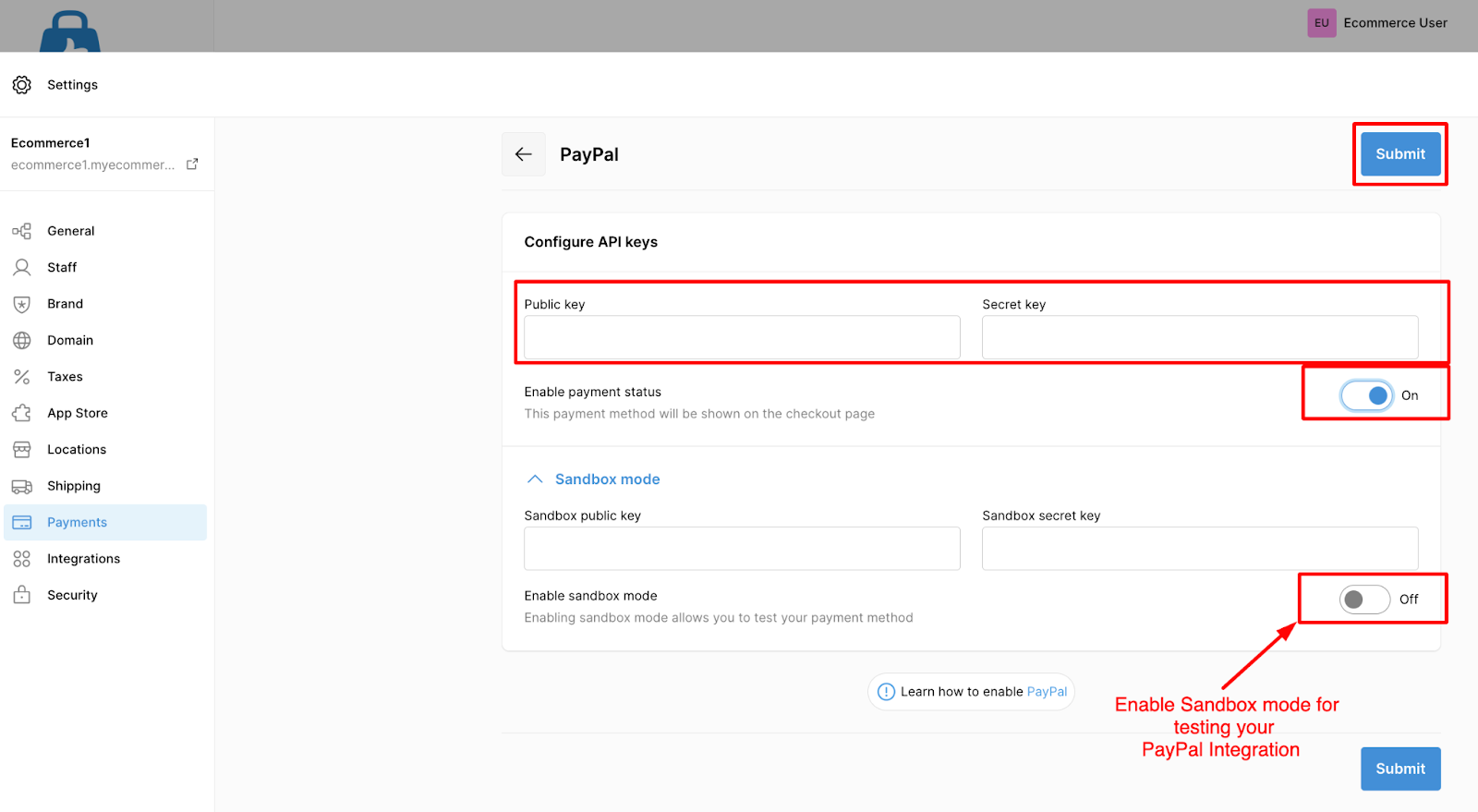
Enable Sandbox Mode (Testing Environment)
Sandbox mode allows you to test payments without real transactions.
To enable:
- On the PayPal configuration page, turn on the Sandbox mode toggle.
- Enter your Test Public Key and Test Secret Key in the respective input fields.
PayPal Supported Currencies
PayPal supports a wide range of currencies, depending on the country associated with your PayPal account.
Below is a non-exhaustive list of currencies supported by PayPal:
| Currency Name | Currency Code |
|---|---|
| Australian dollar | AUD |
| Brazilian real ² | BRL |
| Canadian dollar | CAD |
| Chinese Renmenbi ³ | CNY |
| Czech koruna | CZK |
| Danish krone | DKK |
| Euro | EUR |
| Hong Kong dollar | HKD |
| Hungarian forint ¹ | HUF |
| Israeli new shekel | ILS |
| Japanese yen ¹ | JPY |
| Malaysian ringgit ³ | MYR |
| Mexican peso | MXN |
| New Taiwan dollar ¹ | TWD |
| New Zealand dollar | NZD |
| Norwegian krone | NOK |
| Philippine peso | PHP |
| Polish złoty | PLN |
| Pound sterling | GBP |
| Russian ruble | RUB |
| Singapore dollar | SGD |
| Swedish krona | SEK |
| Swiss franc | CHF |
| Thai baht | THB |
| United States dollar | USD |
- Currencies marked ¹ do not support decimals. Passing decimal values may cause an error.
- Currencies marked ² or ³ are supported only for in-country PayPal accounts.
- For example, BRL and MYR require the receiver to also have an in-country account.
- If the receiver is outside that country, PayPal automatically converts the amount using PayPal’s applicable conversion rate and fees.
PayPal isn’t available with your Store Currency
If PayPal does not appear as an available payment provider, the most common cause is store currency incompatibility.
To use PayPal, you must change your store’s currency to one that PayPal supports.
How to change your Store’s Currency
- Go to Settings → General in the admin panel.
- Click Standards and formats.
- From the Currency dropdown, select a PayPal-supported currency.