
-
Integrations
- Articles coming soon
-
Marketing
-
- Advertising white-label eCommerce solution to your customer ecosystem
- Advertising compliance and brand usage guidelines for partners
- How to create high-converting advertisements for your eCommerce platform
- How to run advertising campaigns to attract online merchants and resellers
- How to measure advertising performance and generate qualified merchant leads
-
- How to promote your eCommerce platform using consistent branding
- White-Label eCommerce branding strategy for partners
- Crafting effective brand messaging for eCommerce platforms
- Positioning your eCommerce platform for different merchant segments
- Maintaining brand consistency across marketing channels
-
- Creating High-Impact eCommerce marketing assets for partners
- Designing eCommerce sales decks that convert merchants
- Creating eCommerce landing pages that convert traffic into merchants
- Creating eCommerce case studies that build trust and close deals
- Creating Email campaigns that drive eCommerce adoption
-
-
Partner Hub
-
- Articles coming soon
-
- Articles coming soon
-
-
Sales
-
- Articles coming soon
-
- Articles coming soon
-
- Articles coming soon
-
- Articles coming soon
-
- Articles coming soon
-
-
Technical and Support
-
-
- Articles coming soon
-
- Articles coming soon
-
- Articles coming soon
-
- Articles coming soon
-
- Articles coming soon
-
-
-
-
-
-
-
- Payment methods at eCommerce Store
- Setting up Stripe Payment Gateway
- Setting up Paypal in your Online Store
- Setting up CashFree Gateway
- Setting up RazorPay Gateway
- Setting up Paystack gateway
- Setting up Flutterwave Gateway
- Setting up Mercado Pago Gateway
- Setting up Mamo Pay Gateway
- Setting up Yoco Gateway
- Setting up Nets Easy Gateway
- Setting up Vipps Gateway
- Setting up Mollie Gateway
- Setting up Epoint Gateway
- Setting up Iyzico Gateway
- Setting up Payriff Gateway
- Setting up Crypto Payments through Nicky
- What is Cash on Delivery?
- Show Remaining Articles (3) Collapse Articles
-
- How to create an analytics account?
- Connecting Google Analytics to your eCommerce store
- Connecting Meta Pixel to your eCommerce store
- Connecting Tik Tok Pixel to your eCommerce store
- Connecting Google Tag Manager to your eCommerce store
- Managing product reviews & ratings in your eCommerce store
- Using marketing automation to drive urgency and social proof
- Setting up your LLMs.txt integration to boost your AI search visibility
- Automating manual order fulfilment and live tracking with Shiprocket
- Automating search engine discoverability with dynamic sitemaps
- Automate, optimise, scale: Building your Google shopping product feed
- How to sync your product catalog with meta ads to drive more sales
-
- Articles coming soon
-
- Articles coming soon
-
- Articles coming soon
-
Connecting Google Analytics to your eCommerce store
Google Analytics is a powerful analytics platform that allows you to collect valuable data from your online store. With these insights, you can understand how customers discover your store, how they behave on your website, and what drives conversions. This helps you make informed decisions, optimize performance, and improve your overall eCommerce strategy.
To integrate Google Analytics with your eCommerce store, you will need your unique Google Analytics Measurement ID (also called the Google Tag ID). This ID links your store to your Google Analytics property and enables accurate data tracking.
Connect Google Analytics to your eCommerce Store
Before you begin, ensure you have created your Google Analytics account and GA4 property. If not, follow the setup steps: Set up Google Analytics 4 (GA4) for your online store below.
Steps to connect Google Analytics:
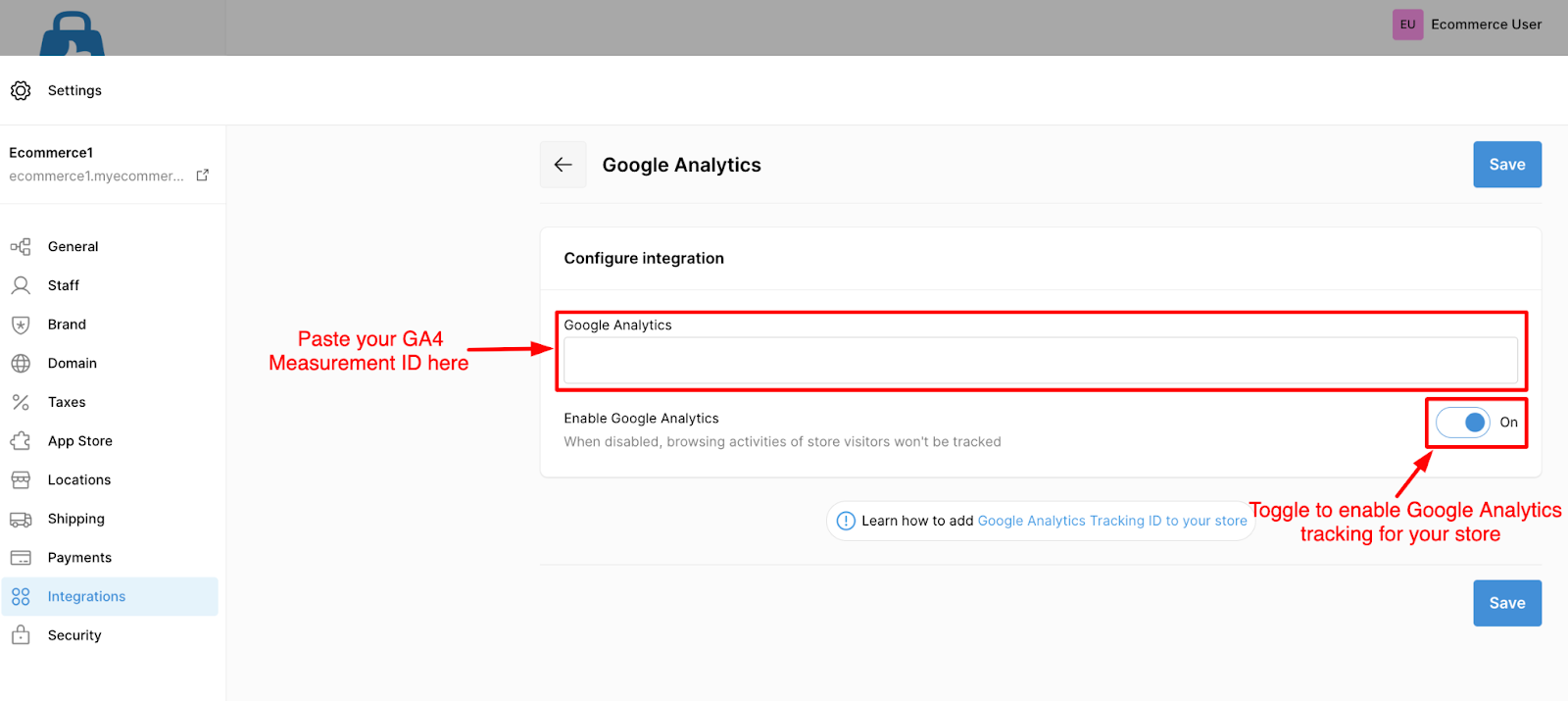
- Log in to your eCommerce Admin Panel.
- Navigate to Settings → Integrations.
- Click the Add button next to Google Analytics.
- Paste your Measurement ID (format: G-XXXXXXX) or GT- ID (for properties created after July 2022).
- Click Save.
That’s it — your Google Analytics is now connected to your eCommerce store.
Set up Google Analytics 4 (GA4) for your Online Store
As of July 1, 2023, Universal Analytics (UA) no longer collects data. Google now requires all users to track with Google Analytics 4 (GA4).
If you are still using UA, make sure to migrate to GA4.
Steps to create a GA4 property:
- Go to your Google Analytics Admin page.
- Under the Account tab, enter your account name.
- Under the Property creation tab, enter the property name that holds all your measurement data for any selection of websites. Ex: My Store.
- Select your reporting time zone and currency.
- Select your reporting time zone and currency.
- Click Next, choose your industry category and business size.
- Click Next, then select how you plan to use Google Analytics.
- Click Create and accept the Terms of Service (if prompted).
- Under Property → Data Streams, click Add Stream.
- Select Web (recommended for online stores).
- Follow the prompts to complete the setup.
Your GA4 property will appear similar to: Property Name – GA4 (123456789)
How to find your Google Tag ID (Measurement ID)
Follow these steps to locate your Google Tag ID:
- Sign in to your Google Analytics account.
- Click Admin from the left menu.
- At the top of the Property column, select your GA4 property.
- Click Data Streams, then choose your Web Stream.
- Scroll to the Google Tag section and click Configure Tag Settings.
-
Under your Google Tag, you will see an ID starting with:
- G-XXXXXXXX (GA4 Measurement ID)
- AW-XXXXXXXX (used for Ads/remarketing setups)
Copy this ID and paste it into your eCommerce admin under: Settings → Integrations → Google Analytics